
Update your Chromebook's operating system
Follow these instructions to update your Chromebook to the latest version of operating system.
Complete update with notification that update was downloaded
Your Chromebook automatically checks for and downloads updates when connected to Wi-Fi or Ethernet.
- When your Chromebook downloads a software update, find the "Update available" notification.
- Select Restart to Update.
- Your Chromebook will restart and update.
Tip: To learn more about the newest Chromebook features, in the "Update available" notification, select Learn more about the latest ChromeOS update.
Manually check OS for update
- Turn on your Chromebook.
- Connect your Chromebook to Wi-Fi.
- At the bottom right, select the time
Settings
.
- At the bottom left, select About ChromeOS.
- Under "Google ChromeOS," find which version of the Chrome operating system your Chromebook uses.
- Select Check for updates.
- If your Chromebook finds a software update, it will start to download automatically.
Note: If your Chromebook uses your phone's internet connection or its own mobile data, it sends you an alert about how much mobile data it needs to update. You can then stop or continue with the update.
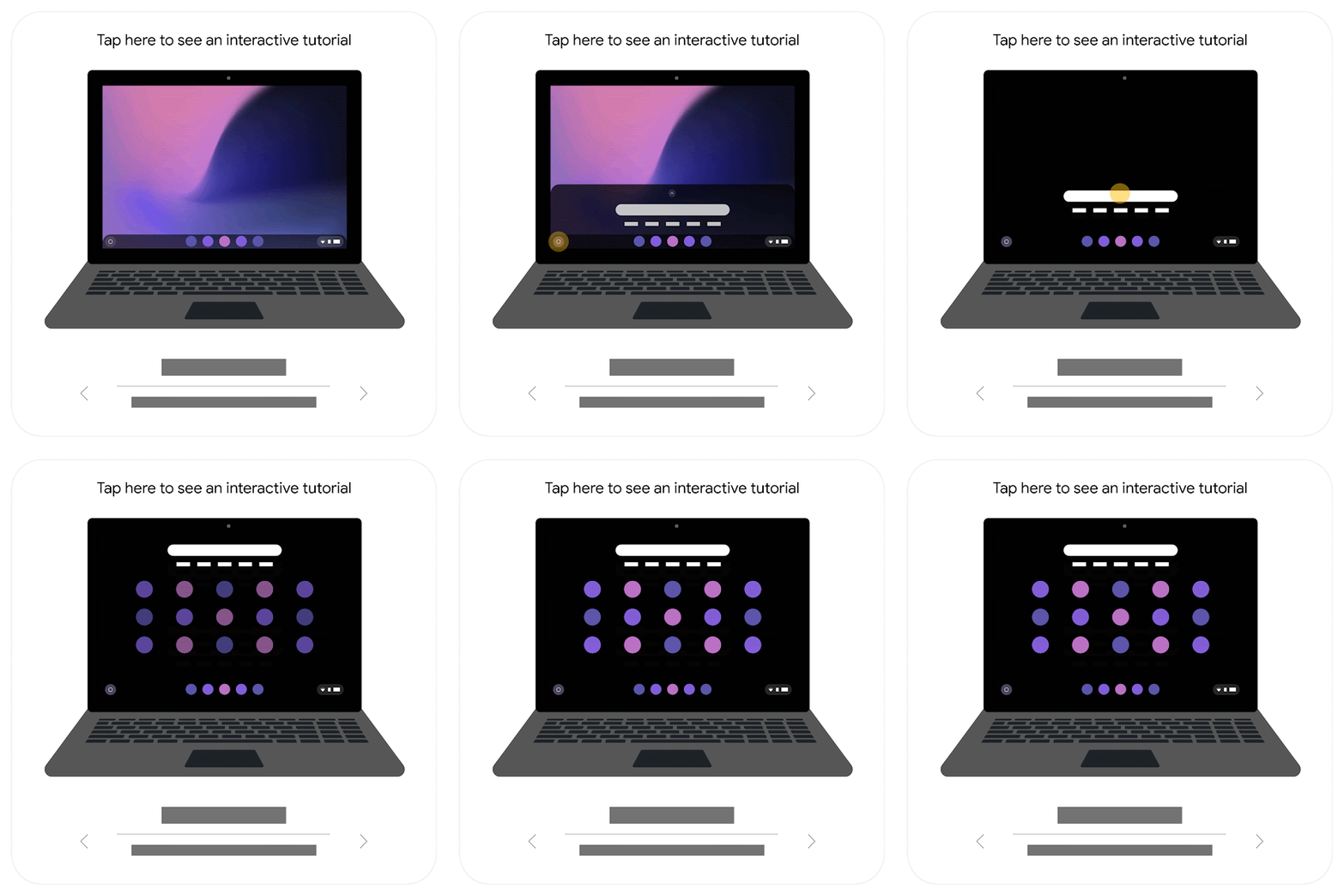
If your system update doesn’t download or your Chromebook is several versions behind the current version, try the steps below. Test your Chromebook after each step to check if the problem is fixed.
- Turn off your Chromebook, then turn it back on.
- If you have trouble with your phone or Chromebook's mobile data to update your system, disconnect from the phone or mobile data. Connect to Wi-Fi or Ethernet instead.
- Reset your Chromebook.
- Recover your Chromebook.
Contact Us
Our agents and support team are here to answer questions, offer guidance and resolve any Cyber attacks.
To reach us:
Phone: +1 (223) 232-2220
Email: customersupport@cyberaid.app
You can submit a request in our Help Center or chat with us using our chatbot or our mobile cyber app.