
Follow these instructions to update your MacOS to the latest version:
Use Software Update
Before installing new software, it's a good idea to back up your Mac.
To check for new software, open Software Update. It's in System Settings (or System Preferences), which you can open from the Apple menu in the corner of your screen:
- Choose Apple menu > System Settings. Click General on the left side of the System Settings window, then click Software Update on the right.
- Or choose Apple menu > System Preferences, then click Software Update.
If Software Update finds new software, click the button to install it, then enter your administrator password when prompted. During installation, your Mac might show a progress bar or blank screen several times, and you should avoid putting it to sleep or closing its lid.
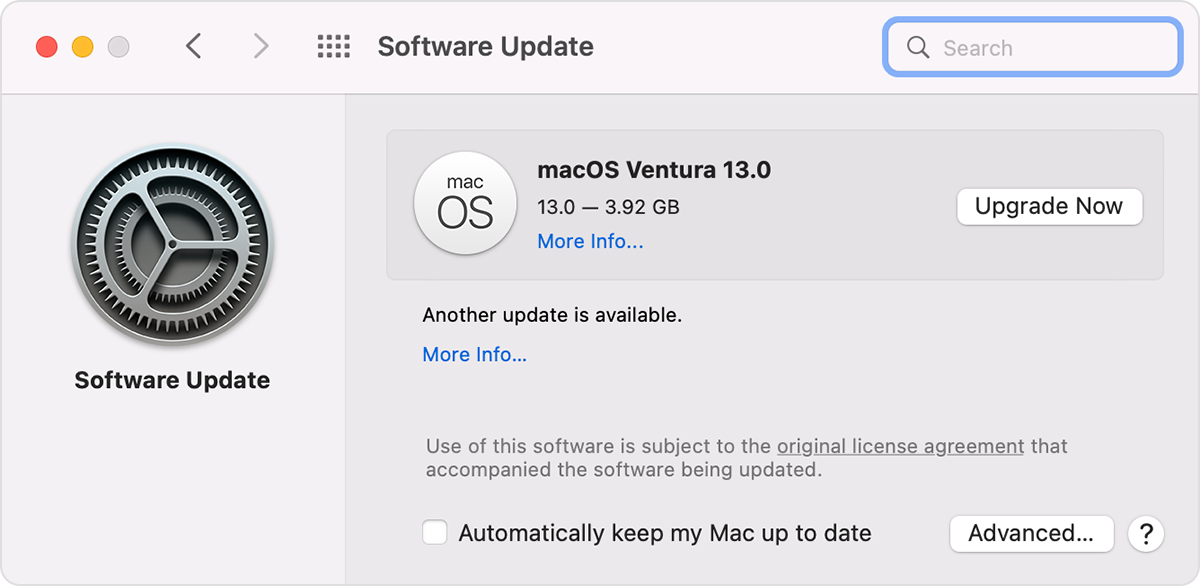
If Software Update says that your Mac is up to date, then no new software is currently available for your Mac model. Software Update shows only software that is compatible with your Mac.
If you don't see Software Update
If you don't see an item named Software Update in System Settings or System Preferences, click the Spotlight icon  in the corner of your screen, then type System Update in the search field. From the search results, choose Software Update.
If your older Mac doesn't include Software Update, use the App Store app instead. It's in your Applications folder.
Contact Us
Our agents and support team are here to answer questions, offer guidance and resolve any Cyber attacks.
To reach us:
Phone: +1 (223) 232-2220
Email: customersupport@cyberaid.app
You can submit a request in our Help Center or chat with us using our chatbot or our mobile cyber app.