
Backing up your data keeps it safe if a cyber attack ever happens and has added benefits of making device updates or changes easier.
This article focuses on using a Mac to backup your Apple device but visit our iCloud and PC articles if you choose to use those devices for your backup.
Backup Instructions using your Mac
- On a Mac with macOS Catalina or later, open a Finder window.
- Connect your device to your computer with a USB cable.
- If asked for your device passcode or to Trust This Computer, follow the onscreen steps.Get help if you forgot your passcode.
- Select your device on your computer.Learn what to do if your device doesn't appear on your computer.
- If you want to save Health and Activity data from your device or Apple Watch, you need to encrypt your backup. Select the "Encrypt local backup" checkbox and create a memorable password.
- Click Backup Now
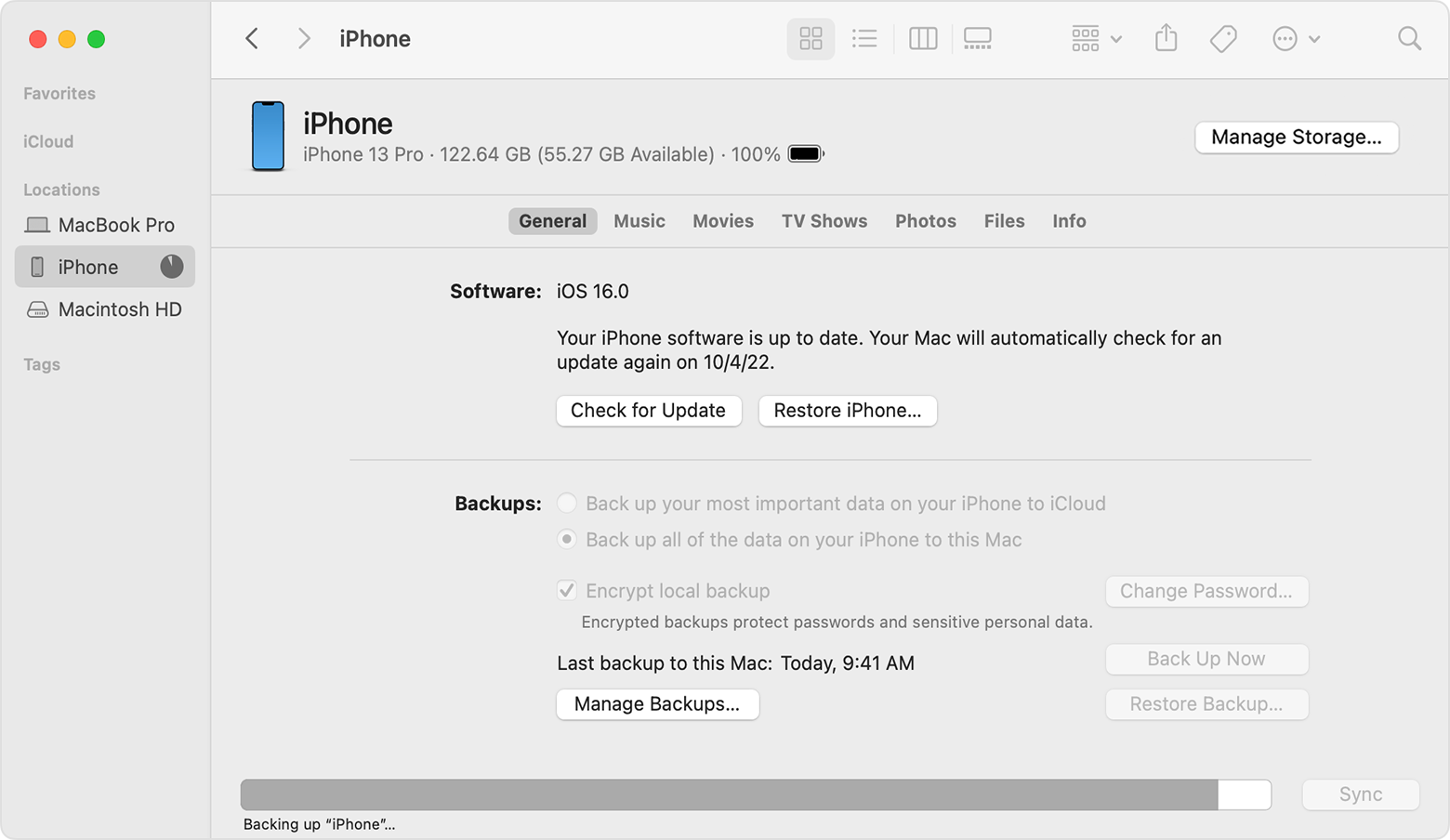
7. Let the process finish(Don't disconnect your phone). Your backup is now finished and you can see the date/time of your last backup.
Apple Support Links
Contact Us
Our agents and support team are here to answer questions, offer guidance and resolve any Cyber attacks.
To reach us:
Phone: +1 (223) 232-2220
Email: customersupport@cyberaid.app
You can submit a request in our Help Center or chat with us using our chatbot or our mobile cyber app.
Download CyberAid's App
Our mission at CyberAid is to keep you safe and secure online with all the cyber protection you need in one place. To get the most effective cyber defense, download our mobile cyber app.